


Panel Guide
Texecom Premier – TTL
Panel Connection – TTL
|
Manufacturer |
Texecom |
|
Model |
Premier |
|
Version |
60, 88, 168, 816 |
|
Minimum Panel Firmware |
V1.x V10.x |
|
Cable required? |
Provided with DualCom Pro |
|
Panel Profile |
TEXECOM PREMIER TTL |
|
Panel Bus Connection |
TTL |
|
Technical Notes |
Premier Range has been phased out. Note SIA string special character issue in troubleshooting section. |
Panel Connection Information
|
Manufacturer |
Panel |
Connection |
Cable/Plug On |
Supplied Cables |
|
Texecom |
Premier/Elite |
TTL |
5 Pin (cable removed) |
Green – RTN |
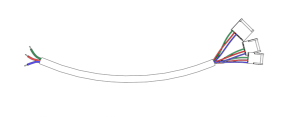
DualCom Pro to Panel Wiring
Panel Programming
- Enter “Engineer Mode”
- In Options Menu” – “Enable Communicator” must be ticked > UDL passcode (set in the panel) must match> Dial attempts 1, ring before answer 3
- In “ARC Menu” – “Account number” (site ID) > “SIA Level 2/3” > “Connect Via IP” – ticked > “Send SIA text” – ticked
- In “Radio-Pad and Com Port Options Menu” – Under “Set Com Port 1” to – “WebWayOne module” > Local IP address – 127.0.0.1 >Local IP Port – 50561 > Gateway – 127.0.0.1 > Subnet Mask – 255.255.255.0 > Name/SMG Port – 50561
- Log out of “Engineer Mode” to establish electrical connection
Troubleshooting
- The DualCom Pro should be connected to Com Port 1
- If only Com Port 2 or 3 is available: Make sure the baud rate (modem speed) is set to 19200
- If the Texecom is being programmed with a laptop on Com Port 2, the DualCom Pro is
connected to Com Port 1 the device will be lost from the panel until the Wintex session is closed - Only the alarm format SIA is supported
Technical Notes
Line fault is through the serial interface, no extra settings are required in either the panel or the DigiAir/DualCom Pro.
If certain PA restores are not coming through, please ensure that within Area Programming, option 21 (Unarmed Tamper/ Fault Comms) is turned ON.


